

Installation
Universal Installation (All Platforms)
You can install Basic Memory usinguv, an extremely fast Python package and project manager, written in Rust.
You can install uv from astral’s website ↗️
Homebrew Installation (macOS)
The easiest way to install Basic Memory on macOS is with Homebrew:If you use Homebrew, you do not need to install with
uv or pip separately.Configure Claude Desktop
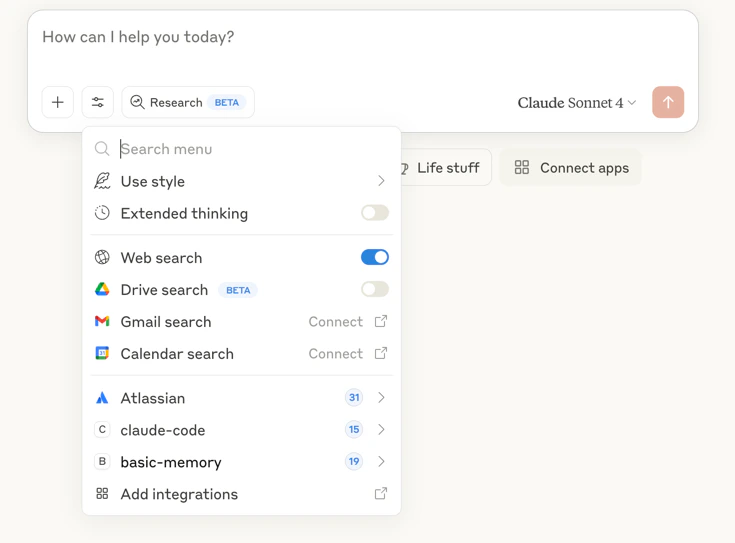
Edit your Claude Desktop config, located at:- macOS:
~/Library/Application Support/Claude/claude_desktop_config.json - Windows:
%APPDATA%\Claude\claude_desktop_config.json
Install Basic Memory Pre-releases (For Daring Adventurers)
Choosing Where Your Notes Are Saved
By default, Basic Memory saves notes in a project calledmain in ~/basic-memory. If you want notes saved somewhere else—like an existing note-taking folder—you can change this easily.
Use Your Existing Notes Folder
The easiest way is to ask Claude directly in your conversation:Advanced configuration: Basic Memory stores its settings in
~/.basic-memory/config.json. While you can use CLI commands for most configuration (recommended), you can also edit this file directly to manage projects and settings. Changes to the config file require restarting Claude Desktop.Multi-Project Setup
You can also work with multiple projects and switch between them using tools via the LLM.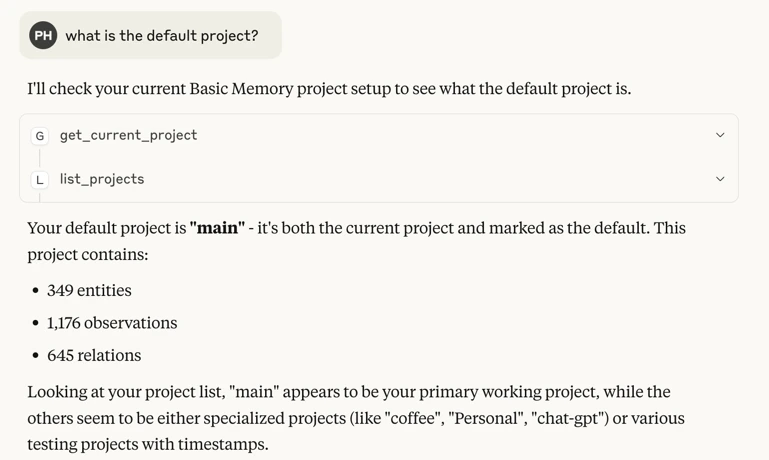
Creating Your First Knowledge Note
- Open Claude Desktop and start a new conversation.
-
Have a natural conversation about any topic:
-
Ask Claude to create a note:
- Confirm note creation: Claude will confirm when the note has been created and where it’s stored.
-
View the created file in your
~/basic-memorydirectory using any text editor or Obsidian. The file structure will look similar to:
Using Special Prompts
Basic Memory includes special prompts that help you start conversations with context from your knowledge base:Continue Conversation
To resume a previous topic:- Search your knowledge base for relevant content about coffee brewing
- Build context from these documents
- Resume the conversation with full awareness of previous discussions
Recent Activity
To see what you’ve been working on:- Retrieve documents modified in the recent past
- Summarize the topics and main points
- Offer to continue any of those discussions
Search
To find specific information:- Search your knowledge base for relevant documents
- Summarize the key findings
- Offer to explore specific documents in more detail
Using Your Knowledge Base
Referencing Knowledge
In future conversations, reference your existing knowledge:Building On Previous Knowledge
Basic Memory enables continuous knowledge building:- Reference previous discussions in new conversations
- Edit notes incrementally without rewriting entire documents
- Move and organize notes as your knowledge base grows
- Switch between projects instantly during conversations
- Search by tags to find related content quickly
- Create connections between related topics
- Follow relationships to build comprehensive context
Workflow Examples
Incremental Editing:Importing Existing Conversations
Import your existing AI conversations using the cli commands:basic-memory project info.
Quick Tips
General Usage
- Basic Memory syncs changes in real-time (no manual sync needed)
- Use special prompts (Continue Conversation, Recent Activity, Search) to start contextual discussions
- Build connections between notes for a richer knowledge graph
- Use direct
memory://URLs with permalinks for precise context - Review and edit AI-generated notes for accuracy
Next Steps
After getting started, explore these areas:User Guide
Comprehensive usage instructions
Knowledge Format
Learn how knowledge is structured
Obsidian Integration
Visual knowledge navigation
Canvas Visualizations
Map concepts visually
CLI Reference
Command line tools
OAuth Authentication
Secure remote access (v0.13.5+)
Staying Updated
To update Basic Memory when new versions are released:After updating, restart Claude Desktop for changes to take effect.
Fluid project switching
Switch between projects during conversations
Advanced note editing
Edit notes incrementally without rewriting
Smart file management
Move and organize notes with database consistency
Enhanced search
Search with frontmatter tag support
Troubleshooting Installation
Fix Path to uv
If you get an error that saysENOENT , this most likely means Claude Desktop could not find your uv installation. Make sure that you have uv installed per the instructions above, then:
Step 1: Find the absolute path to uvx
Open Terminal and run:
/Users/yourusername/.cargo/bin/uvx).
Step 2: Edit Claude Desktop Configuration
Edit the Claude Desktop config:
/absolute/path/to/uvx with the actual path you found in Step 1.
Step 3: Restart Claude Desktop
Close and reopen Claude Desktop for the changes to take effect.
Claude Says “No Basic Memory Tools Available”
If Claude cannot find Basic Memory tools:- Check absolute paths: Ensure you’re using complete absolute paths to uvx in the Claude Desktop configuration
- Verify installation: Run
basic-memory --versionin Terminal to confirm Basic Memory is installed - Restart applications: Restart both Terminal and Claude Desktop after making configuration changes
- Check sync status: You can view the sync status by running
basic-memory status
Permission Issues
If you encounter permission errors:- Check that Basic Memory has access to create files in your home directory
- Ensure Claude Desktop has permission to execute the uvx command